



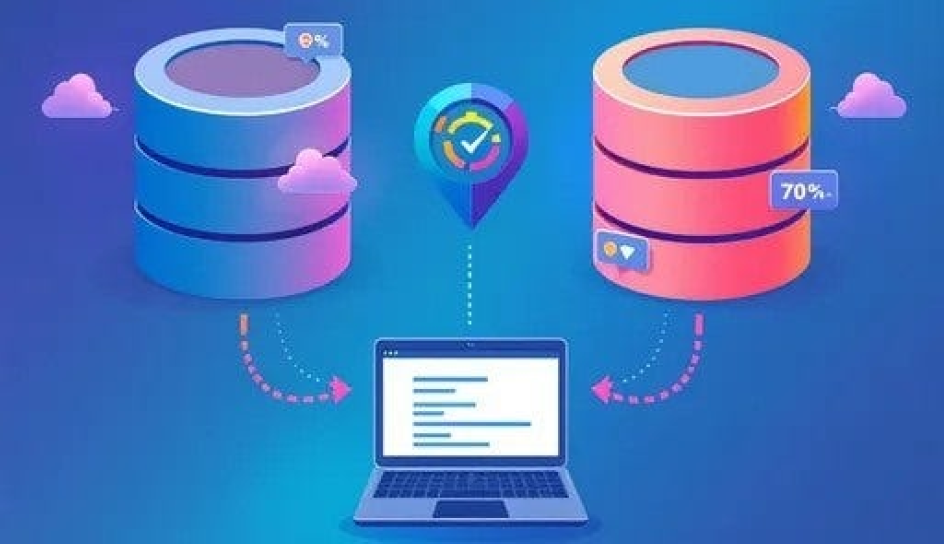
JDBMig: A User-Friendly Approach
Migrating data between different database systems can be challenging, especially when dealing with schema differences and data type mismatches. For this reason i decided to developed jdbmig, a lightweight and user-friendly Java application designed to streamline database migrations using JDBC. Whether you're moving from MySQL to PostgreSQL, SQLite to MariaDB, or any other jdbc supported database, jdbmig simplifies the process.
Why jdbmig?
Unlike traditional migration tools that require extensive configurations or complex scripting, jdbmig is designed with simplicity in mind:
Ease of Use: Minimal configuration needed — just set up a JSON configuration file and execute the migration.
Broad Compatibility: Supports any database with a JDBC driver, including MySQL, PostgreSQL, SQLite, and MariaDB.
Minimal Setup: Lightweight application with no complex dependencies.
For users primarily interested in utilizing jdbmig without delving into the source code, the dist folder provides a convenient solution.
Using jdbmig Without the Source Code
- To use jdbmig without accessing the source code
- Download the Distribution Package
- Navigate to the dist directory on the GitHub repository.
- Download the JDBMig.jar file, which contains the compiled application ready for use.
- Prepare the Configuration File:
- Create a JSON configuration file specifying your source and target database connection details, tables to migrate, and other settings. An example configuration (config.json) is provided in the repository.
- Execute the Migration:
- Open a terminal or command prompt.
- Navigate to the directory containing the downloaded JDBMig.jar file.
- Run the export and import commands as needed
Export data:
java -jar JDBMig.jar --export --config config/config.json --dataDir /path/to/exported/data
Import data:
java -jar JDBMig.jar --import --config config/config.json --dataDir /path/to/exported/data
--export: Exports data from the source database to JSON files.
--import: Imports data from JSON files into the target database.
--config: Specifies the path to your configuration file.
Additional options include:
--dataDir: Specifies the directory where to store or read JSON files
--useConn: Specifies the connection to use if multiple connections are defined.
This approach allows users to perform database migrations effortlessly without interacting with the source code.
Inside the dist/config folder there are 3 examples config files. The config.json.EXAMPLE contains the explanation of all the possible configuration keys.
Complete config Json file example with comments
{
    "HOW TO USE THIS FILE": [
        "-----------  REQUIRED PROPERTIES -------------",
        "- dataDir:    the path where save or read jsons file. The files must match the table names in tables section (products must be products.json).",
        "        dataDir can be overriden from command line argument --dataDir [yourpath]",
        "- tables:    array of tables to export/import",
        "- connection:    self explanatory. property [type] must much the property [name] in driver section",
        "        instead of connection property you can have more then one connections defined and use",
        "        the property useConn to select the one you want. This may be overriden from command line",
        "- drivers:    list of drivers and location of jdbc library.jar",
        "----------- ----------------------------- -------------",
        "-----------  OPTIONAL PROPERTIES -------------",
        "- prettyPrint:         create exported json tables with pretty format",
        "- fieldToLowerCase: Transform all fields name to lowercase",
        "----------- ----------------------------- -------------",
        "For command line options execute: java -jar JDBMig-x.x.x.jar",
        "Other properties where ignored and treated as comments"
    ],
    "dataDir": "data/",
    "fieldToLowerCase": false,
    "prettyPrint": false,
    "useConn": "SQLITE_connection",
    "tables":  [ "table1", "table2" ],
    "EXAMPLE",  "----------- ORACLE XE ----------------",
    "ORACLE_connection": {
        "type": "oracle",
        "initStrings": [
            "ALTER SESSION SET NLS_DATE_FORMAT='YYYY-MM-DD HH24:MI:SS'",
            "ALTER SESSION SET NLS_TIMESTAMP_FORMAT='YYYY-MM-DD HH24:MI:SS'"
        ],
        "jdbcUrl": "jdbc:oracle:thin:@//localhost:1521/XEPDB1",
        "user": "user",
        "password": "password"
    },
    "EXAMPLE",  "----------- POSTGRES ----------------",
    "POSTGRES_connection": {
        "type": "postgres",
        "initString": null,
        "jdbcUrl": "jdbc:postgresql://localhost:5432/DATABASE_NAME?currentSchema=SCHEMA",
        "user": "user",
        "password": "password"
    },
    "EXAMPLE",  "----------- MYSQL ----------------",
    "MYSQL_connection": {
        "type": "mysql",
        "initString": null,
        "jdbcUrl": "jdbc:mysql://localhost:3306/DATABASE_NAME",
        "user": "user",
        "password": "password"
    },
    "EXAMPLE",  "----------- SQLITE  ----------------",
    "SQLITE_connection": {
        "type": "sqlite",
        "initString": null,
        "jdbcUrl": "jdbc:sqlite:./sqlite/test.sqlite"
    },
    "DRIVER SECTION",  "----------- SUPPORTED DRIVERS AND VERSIONS ----------------",
    "drivers": [
        {"name": "mysql",    "className": "com.mysql.jdbc.Driver",           "jarFile": "lib/mysql-5.1.18.jar"},
        {"name": "postgres", "className": "org.postgresql.Driver",           "jarFile": "lib/pgsql-42.2.15.jar"},
        {"name": "oracle",   "className": "oracle.jdbc.driver.OracleDriver", "jarFile": "lib/ojdbc8.jar"},
        {"name": "sqlite",   "className": "org.sqlite.JDBC",                 "jarFile": "lib/sqlite-jdbc-3.32.3.8.jar"},
        {"name": "informix", "className": "com.informix.jdbc.IfxDriver",     "jarFile": "lib/ifxjdbc.jar"}
    ]
}
There are 2 undocumented keys because experimental.
They go inside the [connection] key:
beforeExecute and afterExecute here you can specifies the path of a script files with sql commands specific for the connection.
beforeExecute: scripts/create_schema.sql,
afterExecute: scripts/defaultValues.sql
For example, to create schemas before import starts or set default for fields table(s) when import ends, or better if you have to import a large amount of data it’s good practice to import data without indexes defined and create these after the import ends. For example in Oracle the beforeExecute could be used to create the sequences used by autoincrement fields before, and the afterExecute to update the sequence with the number of rows imported.
create_schema.sql example
ALTER SESSION SET CURRENT_SCHEMA = test;
CREATE SEQUENCE CATEGORIES$_ID_SEQ START WITH 1 INCREMENT BY 1 MINVALUE 1 CACHE 20;
CREATE TABLE CATEGORIES (
 ID NUMBER(10) DEFAULT CATEGORIES$_ID_SEQ.nextval NOT NULL,
 NAME VARCHAR2(50 CHAR),
 DESCRIPTION VARCHAR2(45 CHAR),
);
update_sequence.sql example
DECLARE
    max_rownum NUMBER;
BEGIN
 EXECUTE IMMEDIATE 'DROP SEQUENCE CATEGORIES$_ID_SEQ';
 SELECT COALESCE(MAX(ID),0) INTO max_rownum FROM CATEGORIES;
 max_rownum := max_rownum + 1;
 EXECUTE IMMEDIATE 'CREATE SEQUENCE CATEGORIES$_ID_SEQ START WITH '||max_rownum||' INCREMENT BY 1 MINVALUE 1 CACHE 20';
END
Limitations
At this time, when importing, only data can be imported. This means that the target database must exists with all the tables structure created.
Source code insights
Inside the java folder you can find the source code for jdbmig. The project is a netbeans project with ant. By examining the sources, developers can gain insights into the design patterns and methodologies employed in jdbmig and customize or extend the tool's capabilities. For example add the possibility to create the schema on target db when importing
JDBMig.java: entry point that parses command line arguments and dispatch the request for importing or exporting data.
- Export.java: this class handles the extraction of data from the source database. It establishes a connection using the provided JDBC parameters, retrieves the specified tables, and writes the data to JSON files.
Key functionalities include: - Reading table schemas and data.
- Serializing data into JSON format.
- Managing database connections and resources.
Import.java: this class manages the insertion of data into the target database. It reads data from the JSON files generated by the Export process and inserts it into the corresponding tables in the target database. Key functionalities include:
- Parsing JSON data files.
- Mapping data to the target database schema.
- Handling data type conversions and integrity constraints.
DynamicConnect.java: this class manages the connection to the target db based on the supplied driver.
DynamicDriver.java: this class is responsible to map the supplied driver path or url to the DriverManager dynamically without this agnostic class this utility can’t exist.
There are some utility classes that parses data fields and export or import in a json compatible format. For example blob fields are exported in base64 with a special prefix that restore original content when imported. For compatibility the date, datetime and timestamp field are exported as string with a specific format. For this reason in config file under connection key you can use the special key initString for settings you need before start the process of import or export. for example to import inside oracle you must set specific format
  "EXAMPLE",  "----------- ORACLE XE ----------------",
 "ORACLE_connection": {
  "type": "oracle",
  "initStrings": [
    "ALTER SESSION SET NLS_DATE_FORMAT='YYYY-MM-DD HH24:MI:SS'",
    "ALTER SESSION SET NLS_TIMESTAMP_FORMAT='YYYY-MM-DD HH24:MI:SS'"
  ],
  "jdbcUrl": "jdbc:oracle:thin:@//localhost:1521/XEPDB1",
  "user": "user",
  "password": "password"
 },
If you are interested in learning more about the source code or in discussing with me the implementation, more technical aspects for a better understanding the code, on how to implement new features or how to enhance the tool, contact me.
Conclusion
jdbmig simplifies the database migration process by providing a straightforward and efficient solution. Whether you're an experienced developer or a beginner, this tool makes transitioning between different database systems hassle-free.
Give it a try today! Check out the repository at GitHub and start migrating your databases effortlessly.